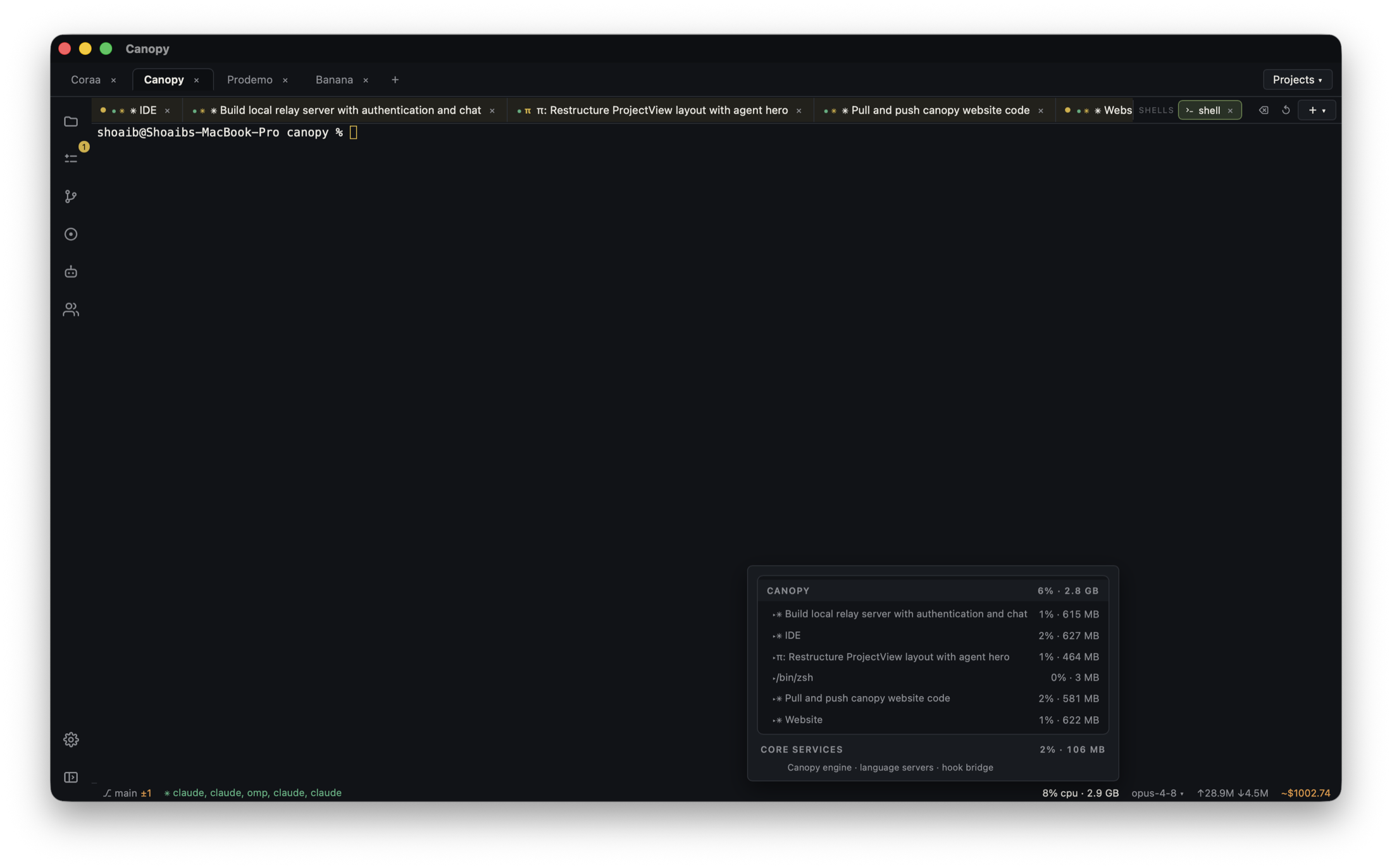
A background task can fail while the website still looks healthy. Keep the Trigger.dev development process visible beside the app and API so a coding agent can see which part of the workflow actually failed.
Finish Trigger.dev's first-run setup in a terminal
Start with an existing project and Trigger.dev account or self-hosted environment. Trigger.dev's current quick start uses its CLI init command to install SDK packages, create trigger.config.ts and an example task, and connect to a project. This can prompt for login, project choice, and updates. Complete those interactive steps in a regular Canopy terminal before treating the worker as a repeatable saved service. Do not run init each time you open the project; it changes project files and is setup, not the day-to-day worker command.
Save the three development commands
Add the frontend and API as Canopy components when they have separate directories. Use the repository root or package containing trigger.config.ts as the Trigger.dev command's working directory, not merely the trigger task folder. In the Servers panel, save the app and API commands your project already uses. For Trigger.dev, save the project's existing script for its dev worker, or the documented command pnpm dlx trigger.dev@latest dev when that matches your package manager and setup. The official CLI docs say dev runs a local server for tasks and may prompt for package updates. For a predictable team workflow, prefer a project script and reviewed dependency versions; check output for an update prompt rather than assuming the command is ready. Canopy starts configured local commands; Trigger.dev remains the task platform and dashboard.
Start, then verify each layer
Start the API, website, and Trigger.dev command. Confirm the frontend URL, API response, and worker output separately. The Trigger.dev CLI says when it is listening and gives a dashboard link. In Trigger.dev's Development environment, open the example task's Test page, run it, and inspect the run page and local worker output. A running process in Canopy only proves a command started; a successful task run proves the worker registered and executed the test payload. Keep the dashboard environment aligned with the local dev process.
Give the agent a precise failure
If the browser action does not produce a task run, report which boundary failed: UI request, backend trigger call, Trigger.dev registration, or task execution. Include the time, environment, run link or ID if one exists, first relevant error, and expected result. Ask the agent to inspect the appropriate component and report commands it actually ran. Canopy keeps local process output, preview, changed files, and the agent session near one another; the Trigger.dev dashboard remains the authority for task run state and traces.
Keep keys and deployment separate
The Trigger.dev quick start asks for a Development environment key when your backend triggers tasks. Store it in your project's approved local secret path and keep it out of commits, screenshots, and agent handoffs. The CLI's --env-file option populates the CLI process only, according to its docs; it is not a general way to inject every variable into task execution. Follow Trigger.dev's task-environment guidance for variables a task itself needs. The Canopy service command is a local development convenience, not deployment or a production worker host.
Resume tomorrow from observed state
Reopen the project, inspect which processes are currently alive, and start the ones you need. Check the worker's latest output, the dashboard's Development environment, and the app's current branch before resuming an agent. Saved commands make restarts faster, but they do not imply the desktop app, website, API, or worker ran while the computer was off. Repeat the dashboard test after a dependency or task configuration change.
Copyable resources
Three-component setup card
Replace placeholders with scripts from your repository; complete Trigger.dev login/init first.
Project root: [repository path]
Frontend component: [path] | command: [project's frontend dev script] | expected URL: [ ]
API component: [path] | command: [project's API dev script] | expected health check: [ ]
Trigger.dev component: [project root or task package] | command: [existing script or pnpm dlx trigger.dev@latest dev]
Development environment: [Trigger.dev project and environment name]
Verification: frontend loads; API responds; dev worker says listening; dashboard example task completes; run ID/link: [ ]
On return: check current processes and branch, then restart only missing commands.
Frequently asked questions
Does Canopy include a special Trigger.dev integration?
This workflow uses Canopy's configured local process commands. Trigger.dev's CLI runs the development worker, and its dashboard shows task runs.
Can I run the Trigger.dev command with one click every day?
After first-run login, project setup, and any update prompts are handled, save the working dev command in Canopy's Servers panel. Verify its output each time; saved does not mean running.
Why is my task missing a variable even though I passed --env-file?
Trigger.dev documents --env-file as hydrating the CLI process, not task processes. Configure task variables using Trigger.dev's environment guidance and keep secret values out of repository content.