A Figma frame can show how a page should look, but it rarely states every interaction, data source, or error state. A useful handoff gives the coding agent the exact frame, the intended behavior, and the existing codebase conventions. Then the owner checks the running page and final diff. This guide uses a pricing page with a monthly/yearly switch as a concrete example; the same method works for a form or dashboard view.
Choose one frame and the states around it
In Figma, copy a link to the exact pricing frame or layer rather than only to a large file. Figma documents that a link can open to a selected frame and that sharing permissions control who can view, copy, or export. Before handing it to an agent, identify the desktop and narrow layouts, selected billing option, loading or error states, and what clicking the plan button should do. If the design only contains a static desktop frame, write down the missing decisions instead of asking the agent to guess a mobile layout or payment behavior. For a private file, confirm the person or connected tool has the intended view access; avoid making the file public solely for an agent trial.
- Record the frame link and design version or review date.
- Identify exact copy, icons, images, and content that may be used.
- Choose one visible success behavior and one failure or empty state.
Give the agent design context it can actually read
There are two practical routes. The low-setup route is an exported frame image, relevant assets, and a brief describing tokens, layout rules, interactions, and existing components. The structured route uses Figma's MCP server through a supported, separately configured coding CLI; Figma says the remote server uses a frame or layer link to return design context. Canopy runs installed agent CLIs in terminals, but a Figma MCP connection and its permissions belong to that CLI and Figma account. Verify the tool call in the chosen CLI before promising it can inspect the frame. Figma's generated context is a design representation, not production-ready code for your repository.
| Route | Give the agent | Verify before implementation |
|---|---|---|
| Image and brief | Frame export, assets, state list, layout notes | Agent can see the image and name missing behavior |
| Figma MCP via CLI | Permitted frame link and configured MCP server | Agent retrieves the intended node and design context |
| Either route | Existing repo components and run command | Agent identifies reuse and starts the real app |
Map design components to existing code
Ask the agent to inspect the repository's button, card, typography, spacing, and responsive patterns before creating new components. Figma recommends semantic layer names, components, variables, Auto Layout, and annotations to communicate intent to code-generating tools. If the team has Code Connect, mapped Figma components can point the agent toward real code components; availability depends on the team's Figma setup and plan. Without a mapping, tell the agent which existing components to reuse and which design tokens are authoritative. A screenshot alone can make an agent approximate color and spacing while duplicating a design-system button.
- For the pricing example, specify whether the monthly/yearly control changes displayed prices only or also the checkout target.
- Keep product names and prices in the approved data source; do not invent billing values from a mockup.
- Flag inaccessible or ambiguous design states for a human decision before the agent implements them.
Run the implementation and compare at matched conditions
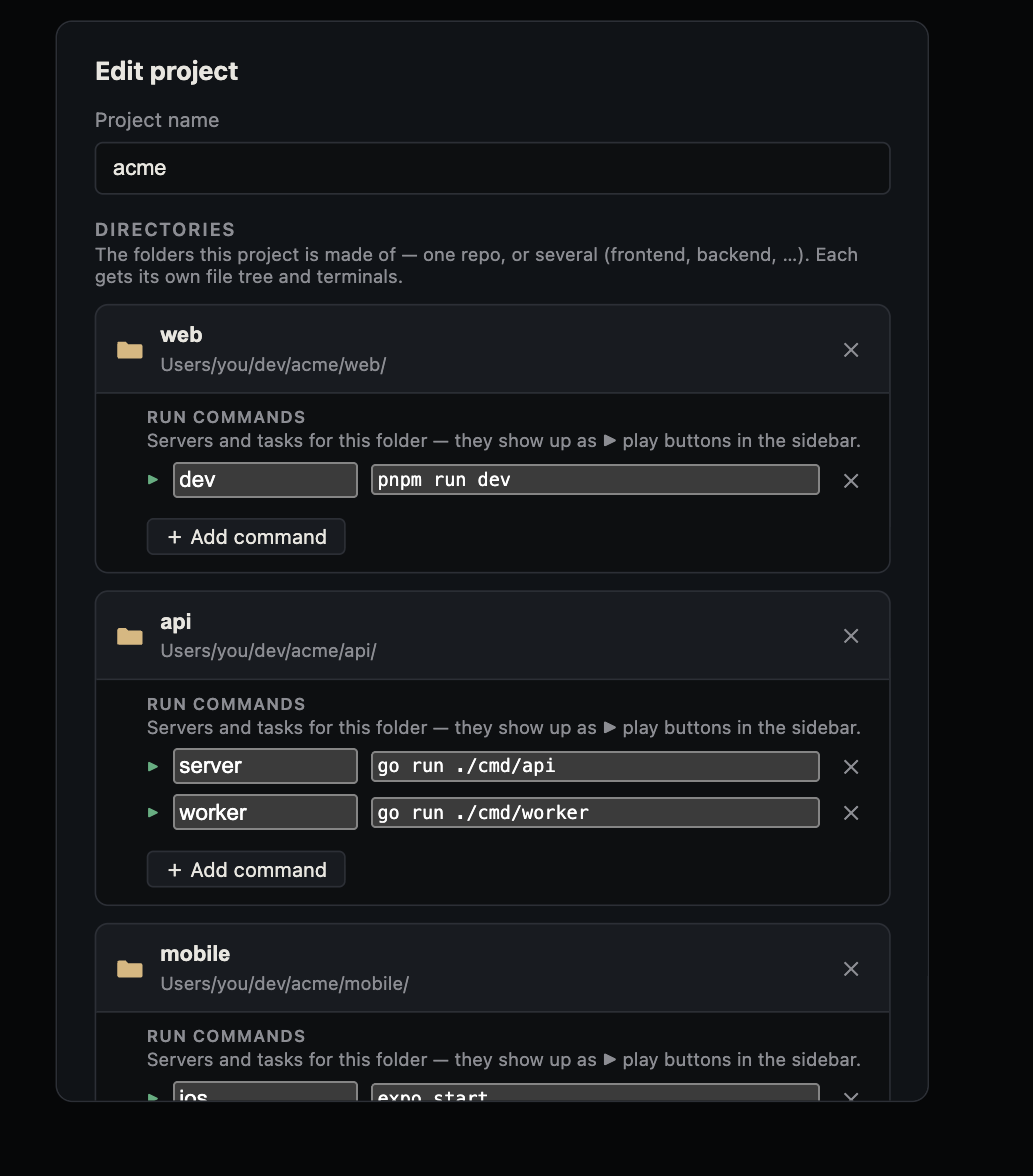
Give the agent a bounded branch or worktree and the existing project run command. In Canopy, start the frontend and any API it needs through the project's configured services, then open the reported URL in Preview. Compare the Figma frame with a browser capture at the same viewport and content state. Check hierarchy, alignment, type, spacing, assets, and the switch's interaction. Repeat at a narrow viewport and with keyboard input. Figma's visual intent still needs an application test: selecting Yearly should update the correct displayed price and the next action should use the same plan. Playwright supports screenshot comparison, but its docs warn that rendering can vary by OS and environment; use a stable baseline and review visible differences rather than treating a raw pixel threshold as product acceptance.
- If the design is private, keep captured previews and exports in approved project storage.
- Report each mismatch with the element, viewport, expected state, and observed state.
- Inspect browser requests or service logs when the UI depends on an API.
Review the code and close the handoff
Inspect the final diff for new dependencies, duplicate components, hard-coded prices, asset licenses, and changes beyond the requested page. Run the project's relevant checks, then repeat the actual pricing interaction in the browser after the last edit. A design match in one screenshot does not establish mobile behavior, accessibility, or a working checkout. Ask the agent to record the frame and revision it used, the branch, changed files, test commands and results, preview URL, and unresolved design decisions. If the page needs a payment integration, hand that to a separate, reviewed task rather than implying the Figma frame implements billing.
- The owner accepts the result against both the design and the stated behavior.
- Keep a PR link so design feedback can refer to the latest diff and commit.
- Return missing states to the designer or product owner as decisions, not silent guesses.
Copyable resources
Figma-to-agent handoff
Use a frame link with deliberate permissions; keep account tokens and private design assets out of public prompts.
Figma frame URL and design version/date: [ ]
Who can view, copy, and export it: [ ]
Desktop frame and narrow layout: [links or exports]
States: [default], [selected], [loading/error/empty]
User action and expected result: [ ]
Copy, assets, and approved data source: [ ]
Existing repo components and design tokens to reuse: [ ]
Agent route: [image + brief / Figma MCP in named CLI]; retrieval verified: [ ]
Project, branch/worktree, run command, and preview URL: [ ]
Visual checks at matched viewports: [ ]
Keyboard, responsive, success, and failure checks: [ ]
Changed files, tests, final diff, and unresolved decisions: [ ]
Frequently asked questions
Can I paste a Figma link into Canopy and expect every agent to read it?
No. The selected CLI must have appropriate Figma access and, for structured retrieval, a supported MCP connection configured in that CLI. An exported frame and brief are a separate route.
Is a screenshot enough to build a working page?
It can guide visual layout, but you must also specify interactions, responsive states, data, and failure behavior. Verify those in the running app and final diff.
Does Figma MCP output production-ready code?
Figma describes its output as design context for an agent to translate into your framework and codebase. Review reuse, behavior, accessibility, tests, and the final implementation.
Should I make a private Figma file public for the agent?
First check whether the intended person or connected CLI can receive scoped view access. Figma's sharing settings govern who can view and export; broad public access is a separate decision.